Export copy
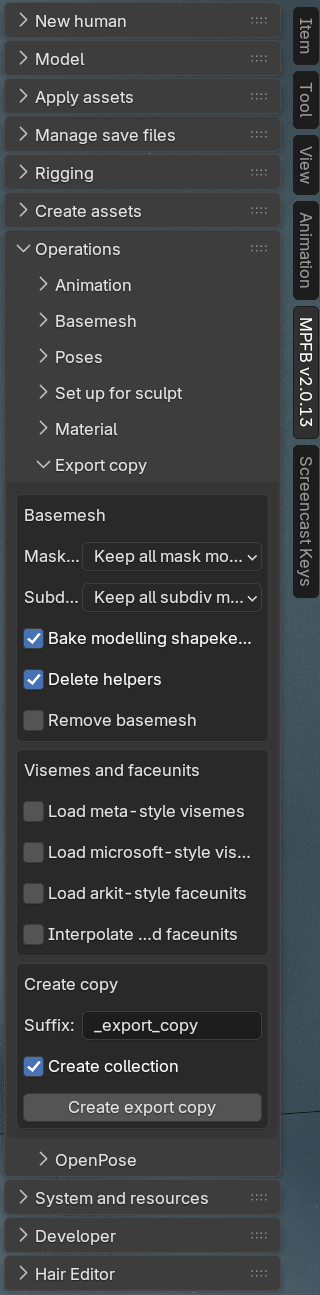
The Export Copy feature creates a self-contained duplicate of your MPFB character that is optimized for use outside Blender. Instead of manually baking shape keys, deleting helper geometry, and managing modifiers one step at a time, Export Copy performs all of these operations automatically on the duplicate — leaving your original character intact and unchanged. You can also use it to add facial animation shape keys (visemes and ARKit face units) to the copy before exporting.
Prerequisites
In order to add visemes or faceunits, you need to have the corresponding asset packs installed. See visemes01, visemes02 and faceunits01.
Opening the panel
The Export Copy panel is found in the N-panel (the side panel that opens with the N key). Navigate to the Operations tab and expand the Export copy section.
Basemesh settings
These options control how the basemesh geometry and its associated modifiers are handled in the export copy.
Bake modelling shapekeys
When enabled, all modelling-related shape keys are baked into the mesh geometry before any modifiers are applied. This produces clean geometry that external applications can work with directly. Disable this option if you need to preserve the original shape key setup in the copy.
Mask modifiers
Mask modifiers are used by MPFB to hide skin geometry that lies underneath clothing, preventing skin from poking through and reducing vertex count. You have three options for how these are handled in the export copy:
- Bake — applies the mask modifiers permanently, removing the hidden geometry from the mesh.
- Remove — discards the mask modifiers without applying them, keeping all geometry visible.
- Keep — leaves the mask modifiers on the copy unchanged.
For most external applications, Bake is recommended.
Note that if you bake mask modifiers, you will most likely also automatically remove the helper geometry (which is generally fine).
Subdiv modifiers
Controls how subdivision surface modifiers are handled. The options are the same as for mask modifiers:
- Bake — applies the subdivision modifier at the current render subdivision level, converting it to actual geometry.
- Remove — removes the subdivision modifier without applying it.
- Keep — leaves the modifier on the copy unchanged.
Delete helpers
When enabled, helper geometry is removed from the export copy. Helper geometry includes internal joint cubes and helper vertex groups that are used inside MPFB and Blender but serve no purpose in external applications. Unless you know what you are doing, you should probably keep this checked.
Remove basemesh
When enabled, the basemesh is deleted from the export copy entirely. This is recommended when your character uses a proxy mesh as the body surface — in that case the basemesh is not needed and removing it keeps the exported file clean.
Visemes and face units
This section lets you add facial animation shape keys to the export copy. These shape keys can be used by game engines and animation tools to drive lip-sync and facial expressions. Each option requires the corresponding asset pack to be installed.
Load microsoft-style visemes
Adds 22 Microsoft-format viseme shape keys to the basemesh, such as aa_02 and p_b_m_21. These are compatible with a range of game engines and speech animation tools that follow the Microsoft viseme specification.
Load meta-style visemes
Adds 15 Meta/VR-format viseme shape keys, such as viseme_aa and viseme_CH. These follow the naming convention used by Meta’s audio-to-viseme pipeline and related VR platforms.
Load arkit-style faceunits
Adds 54 ARKit face unit shape keys, such as browDownLeft and eyeBlinkLeft. These match the blend shape names expected by Apple’s ARKit face tracking system and are also supported by a range of game engines and tools.
Interpolate visemes and faceunits
When enabled, any loaded viseme or face unit shape keys are propagated from the basemesh to all child meshes in the character hierarchy — clothing, hair, body parts, and so on. The propagation uses MHCLO vertex correspondence data to calculate how each shape key deforms each child mesh. Shape keys are only added to a child mesh when the deformation is significant; meshes that are not meaningfully affected by a particular shape key are left unchanged.
Output settings
These options control how the export copy is named and organized in the scene.
Suffix
A text string appended to the name of every object in the export copy. The default value is “_export_copy”. Keeping a distinct suffix makes it easy to identify the copy in Blender’s outliner and avoids name collisions with the original character.
Create collection
When enabled, all objects in the export copy are placed inside a dedicated collection named after the copy. Disable this option if you prefer to have the copy placed in the same collection as the original character.
Creating the copy
Once you have configured the settings, click “Create export copy”. MPFB will duplicate the entire character hierarchy, apply all selected operations in the correct order, and place the result according to the output settings. The original character is left untouched.
If you have opted to bake modifiers but keep shape keys, the operation might take a while to complete as this requires a complex workaround.
Next steps
Once the export copy has been created, select all objects belonging to it (for example, right-click the copy’s collection in the outliner and choose Select Objects) and proceed to export.
See the Exporting MPFB characters page for guidance on FBX export settings, material considerations, and rig choices that affect how the character looks and behaves in external applications.